Product guide
F16 Controls: Push Buttons, Indicators and Head Shapes
Compare the roles of F16 push buttons and indicators, and choose head shapes and panel labels that make compact controls easier to use.
In this article
F16 push buttons and indicator lights serve different roles on a control panel. A push button changes an electrical contact state when operated; a pilot light provides a visual indication. Choosing the right function first makes the remaining selection clearer.
Round, square or rectangular?
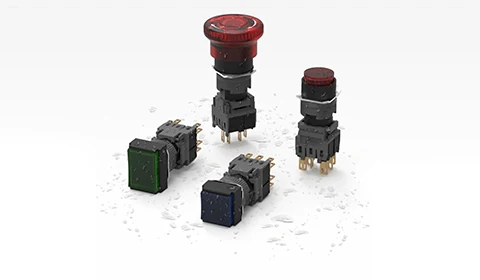
Jinhong lists round, square and rectangular F16 push-button variants. The head shape influences the visible layout and space for a legend. It does not replace the need to check the mounting drawing and spacing between neighbouring controls.
Make the function easy to recognise.
Use clear labels such as a defined machine command or status. Colour can reinforce a meaning, but operators should not have to rely on colour alone. Distinguish an illuminated command button from an indicator showing actual equipment feedback.
Compare the complete part number.
Similar-looking models can differ in operating action, contact configuration and illumination. Record all three in the bill of materials. Check the electrical load against the contact rating and the lamp against its own supply rating.
This overview focuses on the front-panel choices. For mounting and supply checks, read the F16 installation and LED selection article, or compare the F16 product listings.
F16 front-panel layout review
Compare visible head dimensions on a scaled panel drawing before selecting the final appearance. Keep the installation details in the separate mounting worksheet.
| Check | Information to record |
|---|---|
| Head outline | Check space between adjacent round, square or rectangular heads. |
| Legend | Use a short, unambiguous command or status description. |
| Part-number record | Keep action, contacts and illumination with the chosen head style. |
Does a square head require a square mounting hole?
The visible head shape does not define the panel cut-out. Use the mounting drawing for the exact selected product.
Explore the products
Catalogue examples from the ranges discussed. Open a model to check its configuration and technical details.
Request model drawings and selection support